Why use a budget app without a bank connection?
Bank-connected budget apps import your transactions automatically, through an intermediary that gets access to your accounts and usually copies your data to its servers. Apps without a bank connection ask you to note each expense yourself: a few seconds each time, in exchange for keeping your banking data to yourself and noticing every expense as it happens. Neither approach is right for everyone. Here's how to decide.
When you pick a budget app, one of the first choices is whether to link it to your bank. It can look like a technical detail, but it shapes almost everything else: how much effort the app asks of you, who holds a copy of your financial history, and how closely you pay attention to your own spending.
How bank connections usually work
Most budget apps that show your transactions automatically don't talk to your bank on their own. They rely on an aggregator, a company whose job is to connect to many banks and pass the data on. The details vary by country and by service, but the general pattern looks like this:
- You grant access. Depending on the setup, you either type your online banking login into the app or the aggregator's screen, or you approve access through your bank's own pages. That access often needs renewing from time to time.
- Your data is retrieved. The aggregator reads your balances and your transaction history: amounts, dates, merchant names and descriptions.
- It's copied to servers. To categorize and display it, the data is usually stored on the servers of the aggregator, the app, or both.
In some regions this activity is regulated. The point here isn't that bank connections are unsafe. It's that they involve more parties holding a detailed copy of your financial life, and that's worth weighing consciously rather than clicking through.
What a bank connection does well
It's fair to start with the advantages, because they're real:
- Nothing to type. Card payments and direct debits appear on their own.
- Nothing forgotten. The feed includes the small charges you'd never think to write down.
- History from the start. Past transactions can often be pulled in, so you see trends right away.
- Balances that match. What the app shows lines up with what the bank shows.
If you have many accounts and lots of transactions, or you know you'll never note expenses by hand, these benefits can outweigh everything else.
What it involves
- A detailed picture in more hands. A transaction history says a lot: where you live and shop, what you spend on health, your habits, who you pay. Once copied, it's governed by the privacy policy and security of each company involved, and those can change over time, for instance if a company is sold.
- Connections can break. When access expires or a bank changes its systems, the feed can stop until you reconnect.
- Automatic isn't always accurate. Categories are guessed from merchant names, and a cash withdrawal or a bank transfer says little about what it paid for. You still need to review.
Whatever you choose, it's worth reading how an app makes money and what its privacy policy says it does with your data. That's a good habit for any app, connected or not.
The trade-off: a few seconds per expense
Without a bank connection, you note what you spend. That's the cost, and it deserves an honest look: you have to do it, and if you forget, the picture is incomplete.
In practice, the cost is small. If you make three purchases a day and each one takes ten seconds to note, that's thirty seconds a day, or fifteen minutes over a 30-day month.
And the effort has a useful side effect: you notice each expense. With automatic import, spending shows up after the fact, sorted by someone else's rules, and it's easy to go weeks without really looking. Typing "lunch 14" is a small moment of attention right when you spend, and those moments add up to knowing where your money goes.
Noting expenses yourself also lets you record what a bank feed handles poorly: what the cash was actually spent on, your share of a bill split with friends, an expense paid in another currency. The one habit to add is a quick check now and then that your balance in the app roughly matches your bank's.
Who it suits, and who it doesn't
A budget app without a bank connection is likely to suit you if:
- you'd rather not give a third party access to your bank accounts;
- you want to become more aware of your spending, not just read a report about it;
- you often pay in cash, or across several accounts or currencies;
- you make a manageable number of purchases, say a handful a day.
It's probably not the best fit if:
- you have a very large number of transactions across many accounts and want everything automatic;
- you need an exact, reconciled record for accounting purposes;
- you know you won't note expenses, and an incomplete budget would be worse for you than sharing access.
Making manual entry painless
- Note it right away, at the till or as you walk out, before the details blur.
- Enter regular bills once as recurring items instead of typing them every month.
- Keep categories few, so each entry is a quick choice.
- Take five minutes a week to compare with your bank app and add anything you missed.
How Fince works without a bank connection
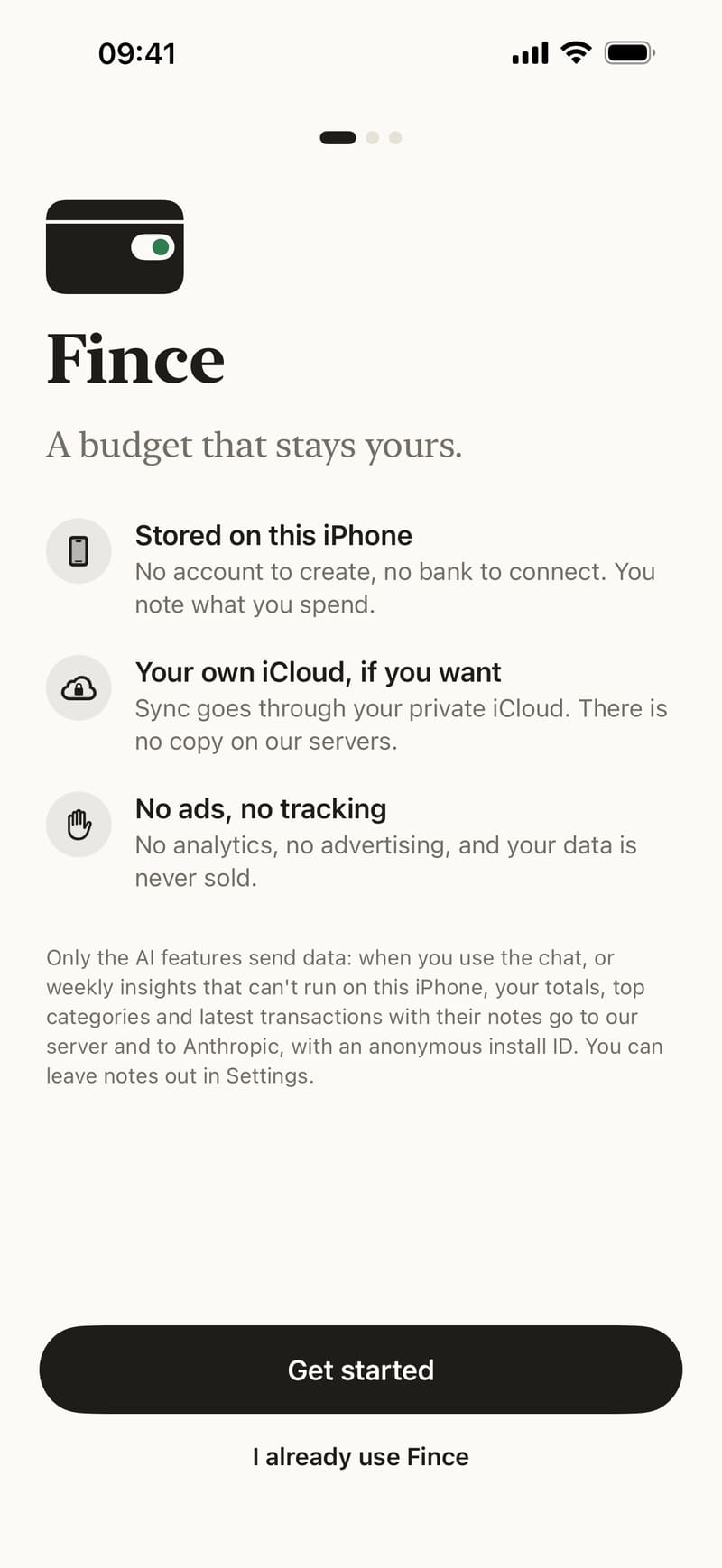
Fince is built around this choice. There's no bank login and no account to create. Your data is stored on your iPhone, encrypted with your passcode, and you can lock the app with Face ID. If you turn on iCloud sync, it goes through your own private iCloud, and Fince has no server copy (the iCloud and backups guide explains how it works). There are no ads and no analytics, and your data is never sold.
To keep entry quick, you can type "coffee 4.50" and Fince fills in the category and amount, or add an expense from a widget or with Siri, as shown in the quick add, widgets and Siri guide. Rent, subscriptions and salary are entered once as recurring items. Since nothing is imported from your bank, what you see is exactly what you chose to write down.
One honest caveat: the AI chat, and the weekly insights that can't run on your iPhone, send a limited summary through Fince's server, which stores none of it, to Anthropic to write the answer. The chat sends this month's totals, your top 3 categories and your 10 most recent transactions from the last 30 days, with their notes unless you turn notes off; online insights send only totals per category and per day. Everything else works on your iPhone, offline. The privacy policy has the details, and our article on tracking expenses without giving up privacy takes a broader look.